On this page 16 sections
- The limits at a glance
- Microsoft 365 (Exchange Online) business mailboxes
- How the limits work in practice
- If your mailbox is blocked for sending
- Outlook.com personal accounts
- Checking what a mailbox has sent
- Distribution groups and aliases
- Sending to Outlook, Hotmail and Live addresses
- A worked example
- Shared and team mailboxes
- What to do if you really need more volume
- Testing before you rely on it
- Outlook's own follow-up features
- Approving third-party apps in Microsoft 365
- Following up safely from Outlook
- Moving from free Outlook.com to Microsoft 365
If you send follow-ups from Outlook, whether it's a company Microsoft 365 mailbox or a personal Outlook.com account, Microsoft applies sending limits. As with Gmail, normal one-to-one business email rarely gets close, but it's worth knowing where the limits are and how they work. Microsoft updates these limits, so check the official pages linked below for current figures.
The limits at a glance
| Account | Per day | Per minute | Per message |
|---|---|---|---|
| Microsoft 365 business mailbox | 10,000 recipients | 30 messages | Up to 1,000 recipients (admin setting) |
| Outlook.com with Microsoft 365 subscription | 5,000 recipients | Not published as a single figure | 500 recipients |
| Free Outlook.com | Lower than the above | Not published | Lower than the above |
The figures come from Microsoft's pages linked below and were checked in November 2026.
Microsoft 365 (Exchange Online) business mailboxes
Microsoft's Exchange Online limits page lists the sending limits for business mailboxes. The ones that matter for follow-ups:
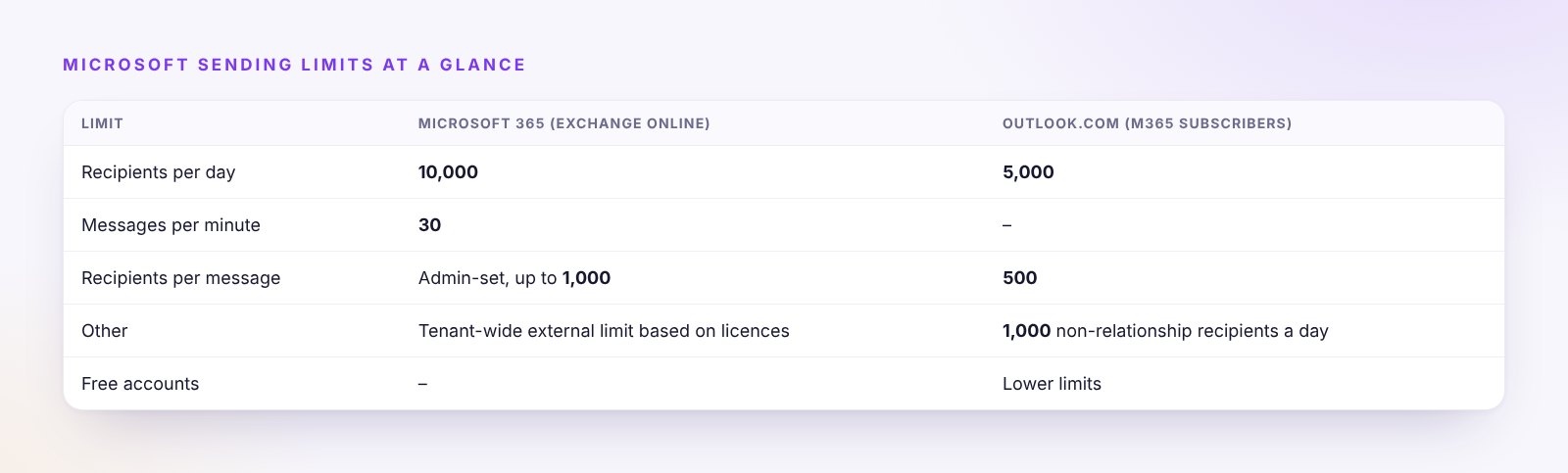
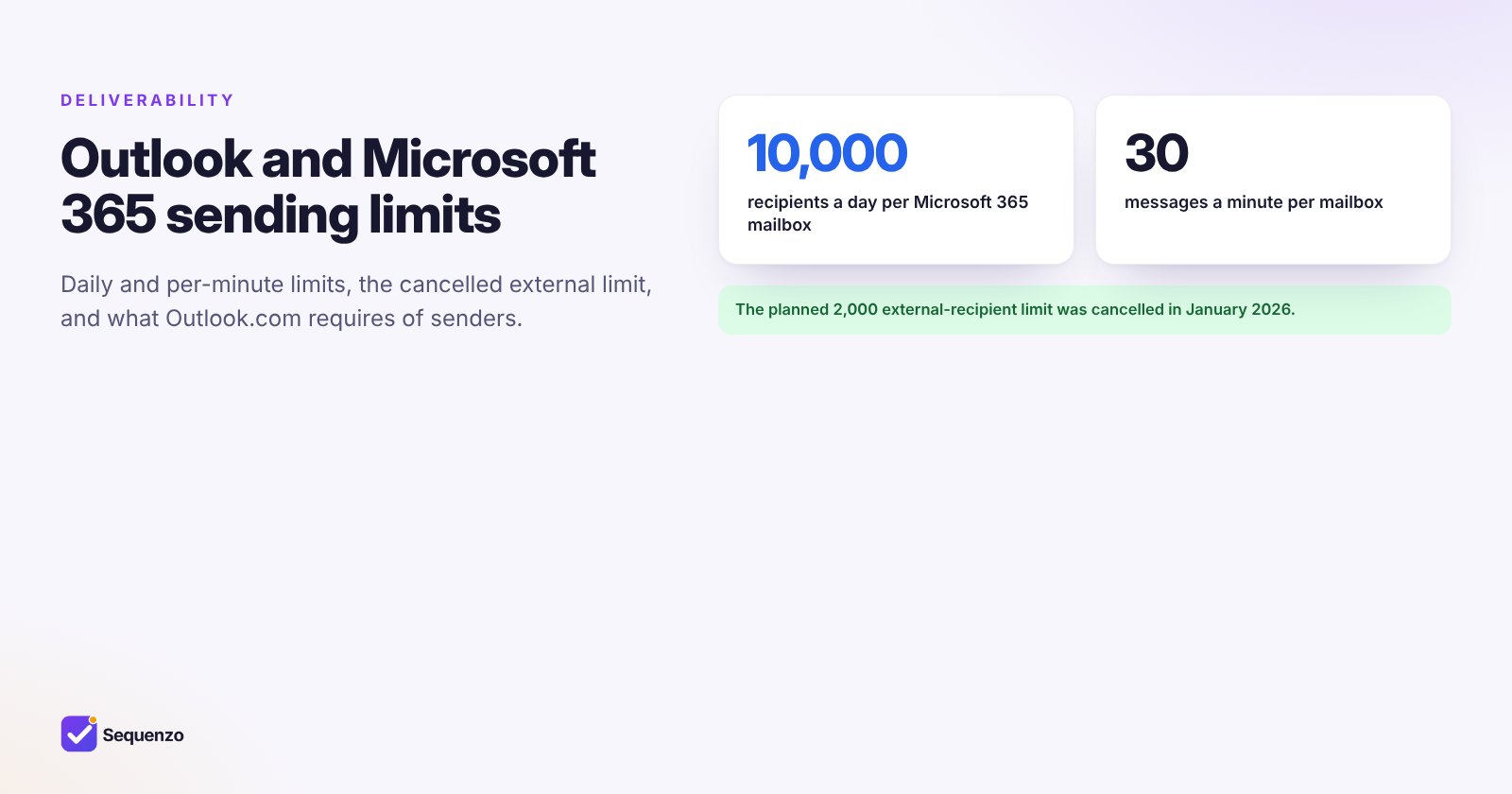
- Recipient rate limit: 10,000 recipients per day.
- Message rate limit: 30 messages per minute.
- Recipients per message: customizable by your admin, up to 1,000.
- Tenant-wide external limits also apply across your whole organisation, scaled to your number of licences (trial tenants are capped at 5,000 external recipients per day).
What happened to the 2,000 external recipient limit?
In 2024 Microsoft announced a per-mailbox External Recipient Rate limit of 2,000 external recipients in 24 hours. After several delays, Microsoft cancelled it in January 2026. If you read older articles that quote it as a current limit, they're out of date.
How the limits work in practice
The recipient rate limit counts recipients, not messages, over a rolling 24 hours. An email to three people counts as three. Every recipient counts, inside or outside your organisation. The per-minute message limit matters most when a tool sends in bursts, which is why follow-ups should be spread across the day rather than queued for 9:00.
When a mailbox goes over the recipient limit, Exchange Online blocks it from sending for up to 24 hours, and the sender gets a non-delivery report. A common error is 554 5.2.0 STOREDRV.Submission.Exception:SubmissionQuotaExceededException. Your IT admin can see restricted users in the Microsoft Defender portal and, after checking why it happened, release the block.
If your mailbox is blocked for sending
- Stop any tools or rules that send from the mailbox.
- Check the Sent Items folder for mail you didn't send. A sudden block with normal use often means the account has been compromised.
- Change the password and review sign-ins if anything looks wrong.
- Ask your admin to release the block once you know the cause.
- Restart follow-ups with a lower daily limit for a few days.
Outlook.com personal accounts
Microsoft's Sending limits in Outlook.com page lists, for Microsoft 365 subscribers: 5,000 recipients a day, up to 500 recipients per message, and 1,000 "non-relationship" recipients a day (people you haven't emailed before). Limits are lower for free accounts. A personal Outlook.com account isn't the right tool for business volume anyway.
Checking what a mailbox has sent
Admins can run a message trace in the Exchange admin center to see what a mailbox sent, to whom and when. It's the quickest way to find out whether a block was caused by a tool, a forwarding rule or a compromised account. Individual users can search their Sent Items, but that won't show mail sent by apps that don't save a copy.
Distribution groups and aliases
In Exchange Online, a distribution group counts as one recipient towards the recipient rate limit, however many members it has. Aliases on the same mailbox share that mailbox's limits, so sending from a second address on the same account doesn't give you a second allowance.
Sending to Outlook, Hotmail and Live addresses
There's a separate set of rules for the receiving side. Since May 5, 2025, Microsoft has required domains that send more than 5,000 emails a day to Outlook.com, Hotmail.com and Live.com addresses to pass SPF and DKIM and publish DMARC (at least p=none, aligned with SPF or DKIM). Non-compliant mail is rejected with the error 550 5.7.515. Details are in Microsoft's announcement for high-volume senders. Even well below that volume, authenticated mail is treated better. See SPF, DKIM and DMARC explained.
A worked example
A small team of five salespeople, each starting 20 new conversations a day with a three-step flow, will send roughly 60 to 80 emails each per day once the flows overlap. That is a small fraction of the 10,000 recipients a day each mailbox may send to. The limits only become a problem when a mailbox is used for bulk email, or when something sends far more than intended.
Shared and team mailboxes
Shared mailboxes in Microsoft 365, such as sales@ or info@, have their own sending rules and are usually accessed through someone's own licence. For one-to-one follow-ups it is generally better for each person to send from their own mailbox, so replies come back to the right person and the conversation has a named owner.
What to do if you really need more volume
Microsoft's limits are generous for one-to-one email and deliberately strict for bulk email. If you need to send newsletters or announcements to large lists, use an email marketing service rather than a Microsoft 365 mailbox. Microsoft also offers separate services for high-volume internal email, but those aren't meant for sending to customers. For follow-ups on conversations you started, one mailbox per person is the right setup.
Testing before you rely on it
Before you start follow-ups from a new Microsoft 365 mailbox, send a few emails to addresses you control at Outlook.com and Gmail, check they arrive in the inbox, and look at the authentication results in the message details. If DKIM isn't signing with your own domain yet, turn it on in the Microsoft Defender portal for your domain. It takes a few minutes and makes a real difference.
Outlook's own follow-up features
Outlook has flags with reminders, and scheduled sending ("Delay delivery" in the desktop app and "Schedule send" in Outlook on the web). Both are useful. Neither sends a follow-up for you when someone doesn't reply, so you still write and send each one yourself. That's the gap follow-up tools fill.
Approving third-party apps in Microsoft 365
Many organisations stop users from granting access to new apps. If you see a message asking for admin approval when you connect a follow-up tool, an admin can review the permissions it asks for and approve it once for everyone, in the Microsoft Entra admin center. Ask them to check what the app can access before approving, as they would for any app.
Following up safely from Outlook
- Stay far below the limits. The limits are there to stop abuse. They aren't a target.
- Respect the per-minute limit. Spread follow-ups through the day.
- Keep follow-ups in the original thread and stop when someone replies.
- Ask IT to approve the app once if your company restricts third-party apps on Microsoft 365.
Moving from free Outlook.com to Microsoft 365
If you follow up with clients from a free Outlook.com address, moving to a Microsoft 365 business mailbox on your own domain gives you higher limits, your own domain's reputation, and the ability to set up SPF, DKIM and DMARC. It also looks more professional to the people you are writing to. When you move, lower your sending volume for the first week while the new domain builds a history.
Sequenzo connects to Outlook and Microsoft 365 by signing in, applies its own daily limit per mailbox (well below Microsoft's), and spreads sends across your chosen sending hours. Using Gmail too? See Gmail sending limits.
Frequently asked questions
Q01How many emails can I send per day from Microsoft 365?
Exchange Online allows 10,000 recipients per day per mailbox and 30 messages per minute. Your organisation also has tenant-wide external limits based on its number of licences.
Q02Is the Microsoft 2,000 external recipient limit in effect?
No. Microsoft announced a 2,000-per-day External Recipient Rate limit in 2024 but cancelled it in January 2026.
Q03What are the sending limits for Outlook.com?
For Microsoft 365 subscribers, Microsoft lists 5,000 recipients per day, 500 recipients per message and 1,000 non-relationship recipients per day. Free accounts have lower limits.
Q04What does error 550 5.7.515 mean?
Outlook.com rejected the message because the sending domain does not meet Microsoft's authentication requirements for high-volume senders (SPF, DKIM and DMARC).