On this page 12 sections
- How CRM BCC logging works
- BCC, forwarding or inbox sync?
- Where to find your BCC address
- Why logging follow-ups matters
- Notes for each CRM
- Things to check before you rely on it
- What to log and what to leave out
- Common problems and how to fix them
- Setting it up for a team
- Logging automated follow-ups too
- Privacy and data protection
- A quick test before you rely on it
If your team uses a CRM, every email to a customer should be visible on their record. Otherwise a colleague picks up the phone without knowing you sent a quote yesterday. The simplest way to make that happen, without installing anything, is your CRM's BCC address.
This guide is for salespeople, agents and small teams who use a CRM such as HubSpot, Pipedrive, Salesforce or Zoho CRM and want every email to a client, including automated follow-ups, to appear on that client's record.
How CRM BCC logging works
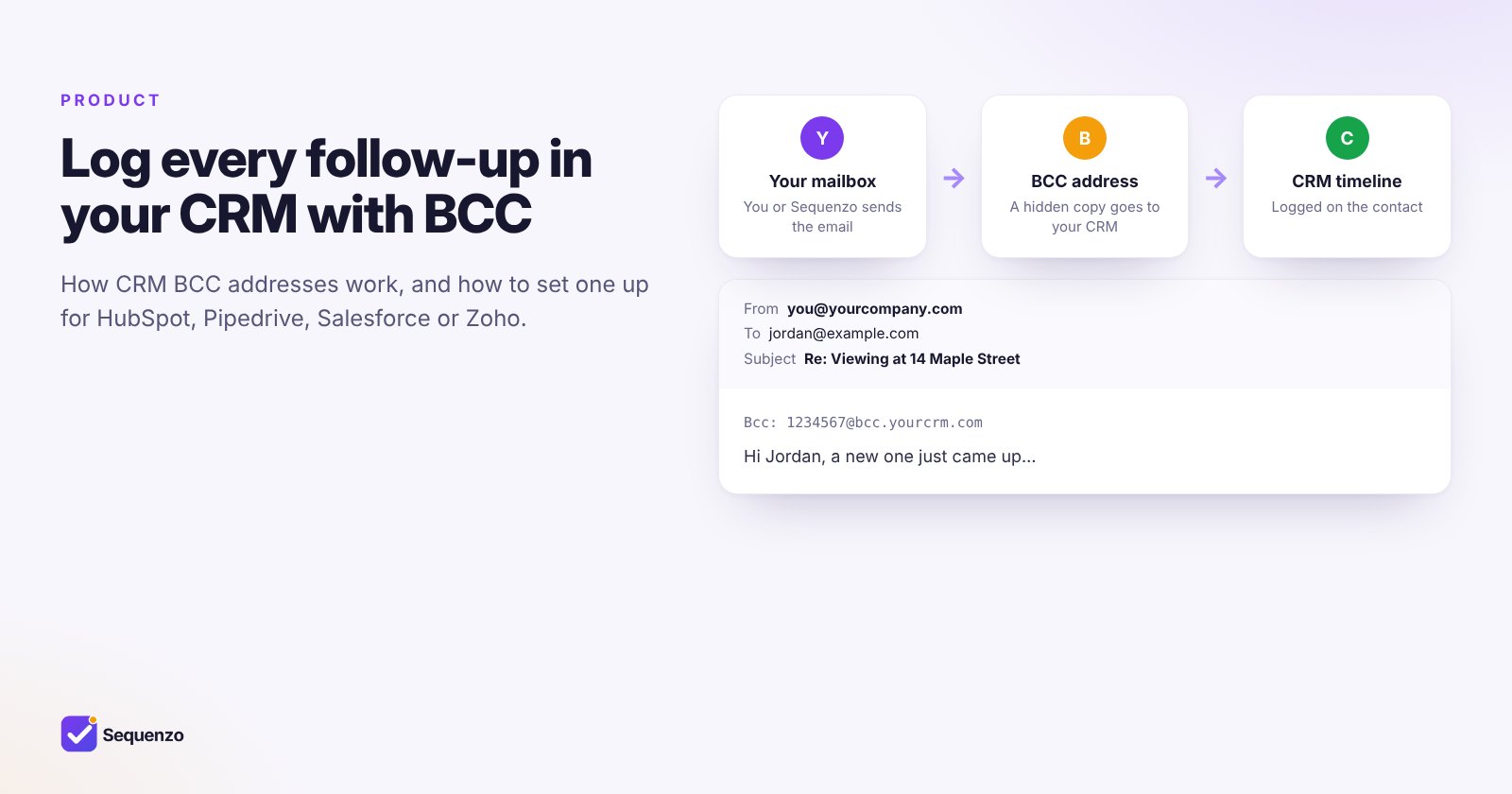
Most CRMs give each user (or account) a private email address. When you add that address in the BCC field of an email, the CRM receives a hidden copy, matches the recipient's email address to a contact, and logs the message on that contact's timeline. The recipient never sees the BCC address.
BCC, forwarding or inbox sync?
CRMs usually offer three ways to get email in. They suit different people.
| Method | How it works | Good for | Watch out for |
|---|---|---|---|
| BCC address | You add a private address to BCC and the CRM logs a copy | Logging what you send, from any mailbox or tool | Replies aren't logged unless you also BCC or forward them |
| Forwarding | You forward an email or thread to the CRM's address | Logging a past conversation, including replies | Easy to forget, and the CRM must parse the forwarded thread |
| Inbox sync | The CRM connects to your mailbox and reads matching emails | Logging everything both ways automatically | Gives the CRM wide access to your mailbox, and needs an admin to set up |
Many small teams use BCC because it works with any mailbox and any tool, and it only logs what you choose to send to clients. It pairs well with automated follow-ups, because the tool can add the address to every step for you.
Where to find your BCC address
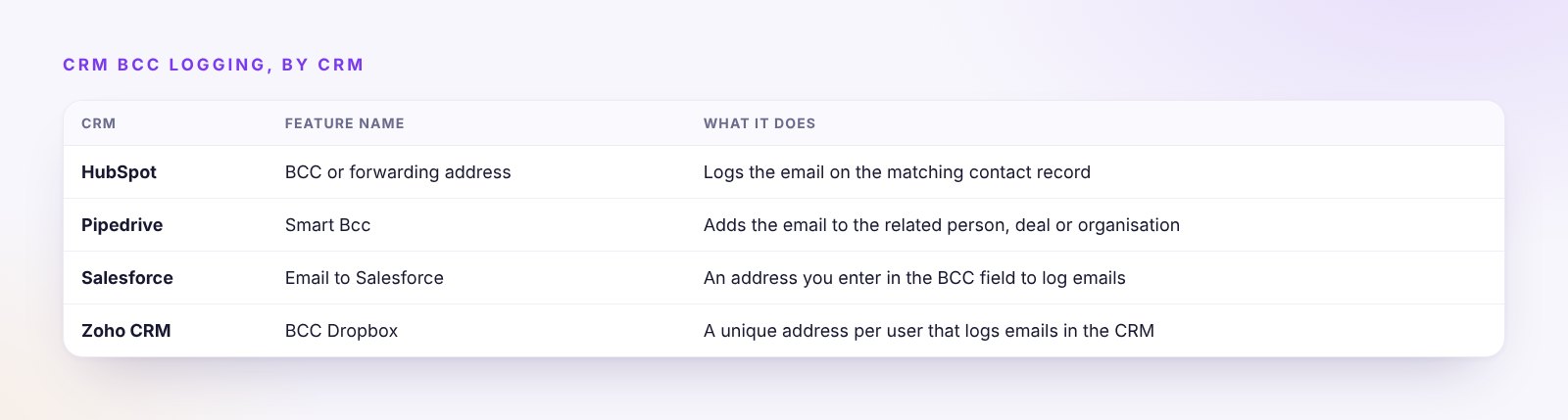
- HubSpot: a BCC address that logs emails to contact records. See HubSpot's guide, Log email in your CRM with the BCC or forwarding address.
- Pipedrive: Smart Bcc adds emails to the related person, deal or organisation.
- Salesforce: Email to Salesforce gives you an address to "enter in the BCC field" of emails you want logged.
- Zoho CRM: BCC Dropbox provides a unique email address for each user.
Menu locations change between versions, so follow the vendor's current article rather than an old screenshot.
Why logging follow-ups matters
A CRM is only useful if it shows the whole conversation. When automated follow-ups aren't logged, the record shows your first email and then silence, and a colleague may call the client to "check in" a day after your second follow-up went out. Logging every step means anyone opening the record can see what was sent, when, and whether the client replied. It also makes reports on response times and follow-up coverage accurate.
Notes for each CRM
HubSpot
HubSpot's BCC address logs the email on the timeline of the matching contact, and depending on your settings it can create a contact when none exists. Check the logging settings in your HubSpot account, and make sure the address you send from is connected to your HubSpot user.
Pipedrive
Smart Bcc links the email to the person and, where it can, to their open deal and organisation. It's useful when a single contact has more than one deal, because you can see which conversation the email belonged to.
Salesforce
Email to Salesforce has to be turned on by an admin, and each user adds the addresses they send from to their acceptable email addresses. Emails from an address that isn't on that list are rejected, which is a common reason logging silently fails.
Zoho CRM
The BCC Dropbox gives each user a unique address. Emails are associated with records that match the recipient's address. Check whether your edition includes it, and whether it should also log emails to leads as well as contacts.
Things to check before you rely on it
- Matching: the CRM logs the email against a contact with the same email address. If the contact doesn't exist, some CRMs create one and some ignore the email. Check your CRM's setting.
- Which emails to log: usually only emails to customers and prospects. Don't BCC internal emails.
- Privacy: logging customer email in a CRM is processing their personal data. Make sure your privacy notice covers it.
- Replies: BCC logs what you send. Logging the customer's replies depends on your CRM (forwarding, inbox sync or an integration).
What to log and what to leave out
Log everything you send to clients and prospects about a deal: quotes, proposals, follow-ups, meeting recaps and answers to questions. Leave out internal emails, personal messages and anything that copies colleagues for information only. If several people work on one account, agree who BCCs the CRM so the same email isn't logged three times.
Common problems and how to fix them
- The email isn't logged at all. Check the BCC address is exactly right, with no spaces, and that it belongs to the user who sent the email. Some CRMs only accept BCC from email addresses connected to a CRM user.
- It's logged against the wrong contact. The CRM matched a different record with the same email address, or a colleague's address was in Cc. Merge duplicates and keep internal people out of client threads where you can.
- A new contact was created that you didn't want. Turn off "create contacts from logged emails" if your CRM has that option, or clean up regularly.
- Attachments are missing. Some CRMs store only the email body, or limit attachment size. Check your CRM's settings.
- Replies are missing. That is expected with BCC alone. Use your CRM's forwarding address for important replies, or an integration that logs them.
Setting it up for a team
Decide first whether each person uses their own BCC address or one shared address. Personal addresses mean the CRM knows who sent each email, which matters for reporting. A shared address is simpler but can attribute everything to one user. Most CRMs recommend personal addresses. Then write it down: which address each person uses, which emails should be logged (client emails, not internal ones), and who checks once a month that logging still works.
Logging automated follow-ups too
If follow-ups are sent automatically, they need to be logged as well, otherwise the CRM shows your first email and then nothing. In Sequenzo you can add your CRM's BCC address once, and every follow-up in your flows is BCC'd to it automatically. CRM BCC is included on every plan, including Free.
HubSpot users can also connect a private-app token so that replies, bounces and follow-up statuses are written to the contact's timeline as notes. The sync is one-way: Sequenzo writes to HubSpot and never deletes anything there. For other tools, outbound webhooks (for example when a reply is received) let you connect anything else. See Sequenzo for teams.
Privacy and data protection
Logging client email in a CRM means storing personal data in another system. Make sure your privacy notice says you do this, keep only what you need, and delete records when a client asks you to and you have no reason to keep them. If you work in a regulated industry such as insurance or mortgages, check whether your regulator has rules about record keeping that make logging required rather than optional.
A quick test before you rely on it
- Create a test contact in your CRM with an email address you own.
- Send that address an email from your normal mailbox with the CRM's BCC address added.
- Check the email appears on the contact's timeline within a few minutes.
- Start a short Sequenzo flow to the same address with CRM BCC turned on, and check the follow-up is logged too.
- Reply from the test address and confirm the flow stopped.
New to automated follow-ups? Start with how to set up your first follow-up flow.
Frequently asked questions
Q01How do I log emails to my CRM automatically?
Most CRMs give you a private BCC address. Add it to the BCC field of an email and the CRM logs the message on the matching contact's record. Some tools let you add it automatically to every email.
Q02Does the recipient see the CRM BCC address?
No. Addresses in the BCC field are hidden from the recipients.
Q03Which CRMs support BCC logging?
HubSpot, Pipedrive (Smart Bcc), Salesforce (Email to Salesforce) and Zoho CRM (BCC Dropbox) all offer it, as do many others.
Q04Are automated follow-ups logged too?
Only if your follow-up tool includes the BCC address on each follow-up. Sequenzo can BCC every follow-up to your CRM automatically.