On this page 14 sections
- Step 1: Connect your mailbox
- Step 2: Check your domain's authentication
- Step 3: Set a gentle daily limit
- Step 4: Build the flow
- Step 5: Send your email with the flow attached
- Step 6: Watch it work in Live follow-ups
- Step 7: Measure replies, not opens
- Writing your first three follow-ups
- Example flows to start from
- Setting it up for a team
- Send later, reminders and Inbox Pause
- Common setup problems
- After the first week
- A checklist before you send to real contacts
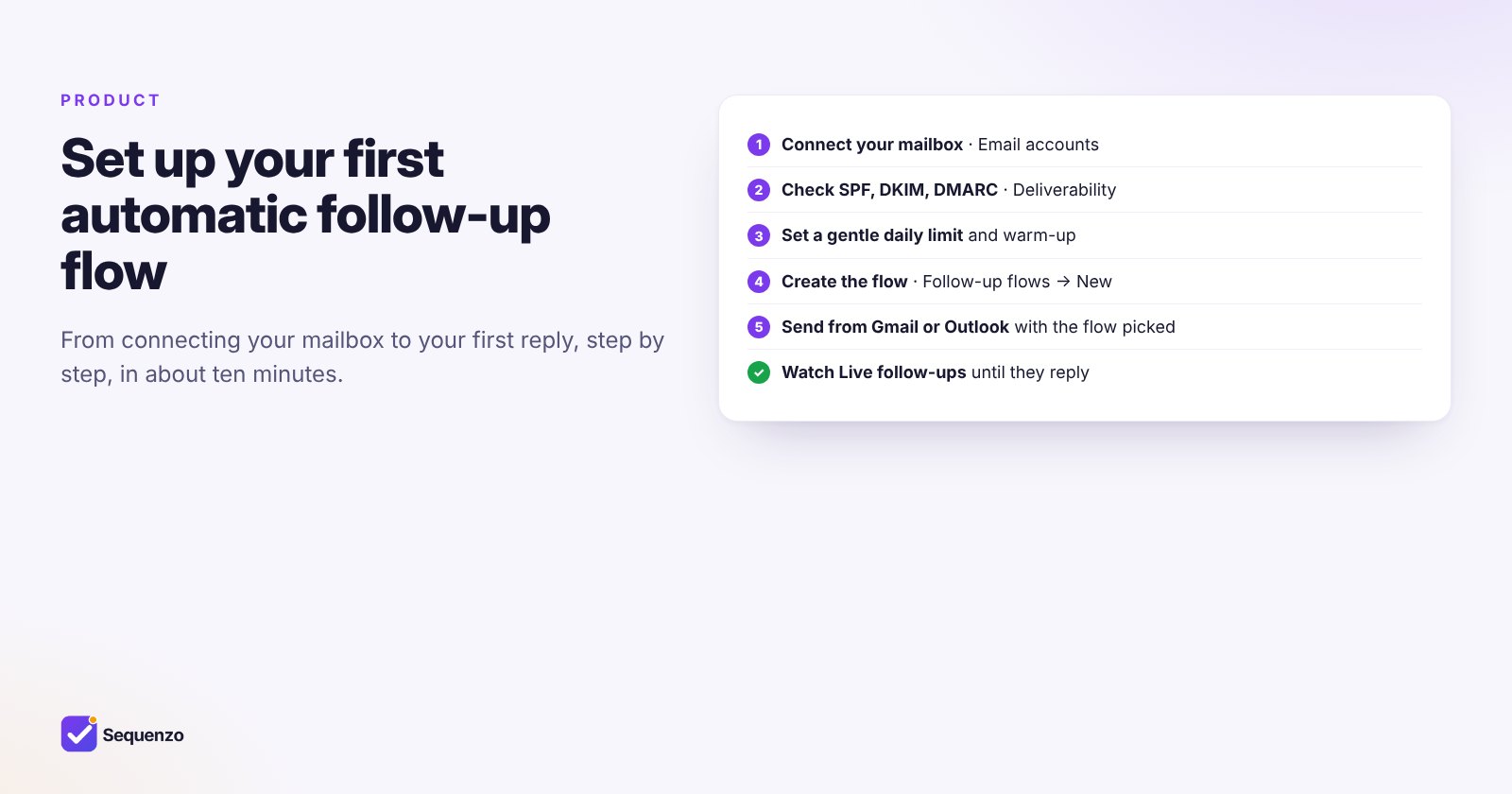
This guide walks you through setting up your first automatic follow-up flow in Sequenzo, from connecting your mailbox to seeing your first reply. It takes about ten minutes. You'll end up with a sequence that sends follow-ups from your own Gmail or Outlook address, in the same thread as your original email, and stops when the other person replies.
A quick note on what this is for: following up on conversations you started, such as quotes, viewings, test drives, proposals and enquiries. Sequenzo is not a tool for bulk or cold email to people you've never dealt with.
Step 1: Connect your mailbox
Go to Email accounts and choose Connect.
- Gmail or Google Workspace and Outlook or Microsoft 365 connect by signing in with your account. On a company Microsoft 365 account, your IT admin may need to approve the app once.
- Any other provider (Zoho, a hosting company's mail, and so on) connects with an app password over IMAP/SMTP. A guided setup walks you through creating the app password, and it also works for Gmail if your organisation restricts third-party sign-in.
Use Test connection to confirm both sending and reply detection work before you go further.
Step 2: Check your domain's authentication
Open Deliverability. Sequenzo grades your domain's SPF, DKIM and DMARC records and tells you what's missing. If you use a custom domain and something is failing, fix it now. It affects inbox placement far more than anything you write. Our guide to SPF, DKIM and DMARC shows the records to publish.
Step 3: Set a gentle daily limit
Each mailbox has a daily sending limit. For a mailbox that's new to sending follow-ups, start low (20–30 a day) and use Apply recommended warm-up to raise it gradually. When the limit is reached, follow-ups are held until the next day, not failed. Your provider's own limits still apply. See Gmail sending limits and Outlook and Microsoft 365 sending limits.
Step 4: Build the flow
Go to Follow-up flows and create a new sequence. You have three ways to start:
- Start from a proven 4-step follow-up: four steps spaced 2, 3, 4 and 7 days apart, ready to edit.
- Start from a template: starter templates cover real estate, car sales, services, B2B and meetings.
- Write the whole flow with AI: describe the situation and review the draft. Nothing is applied until you accept it.
Each follow-up is sent as a reply in the same thread by default. For each step you can set the delay, and turn on options such as Personalise with AI, Add my booking link or A/B test this step. Use merge fields with a fallback so nothing looks broken: {{first_name|there}} becomes "Hi Jordan" or "Hi there".
Set the sending days and hours so follow-ups arrive during the working day in the recipient's time zone. The Reply coach scores each step out of 100 and points out things like missing questions or overly long text. Writing tips: 7 rules for follow-ups that still sound like you.
Step 5: Send your email with the flow attached
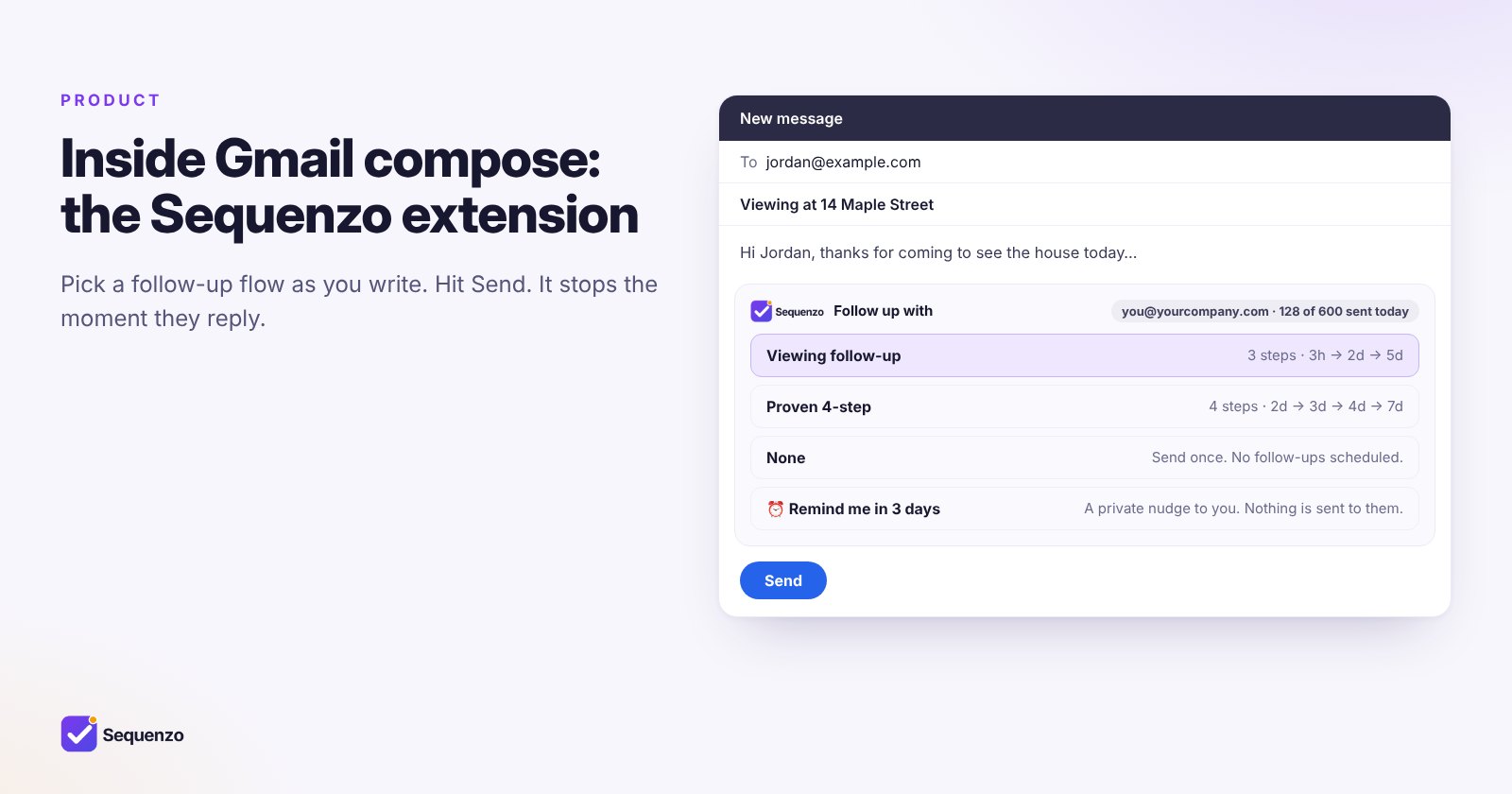
The easiest way is the Sequenzo browser extension. Write your email in Gmail or Outlook as usual, choose the flow in the Follow up with picker at the bottom of the compose window, and press Send. You can also enrol an email address directly from the flow page.
Step 6: Watch it work in Live follow-ups
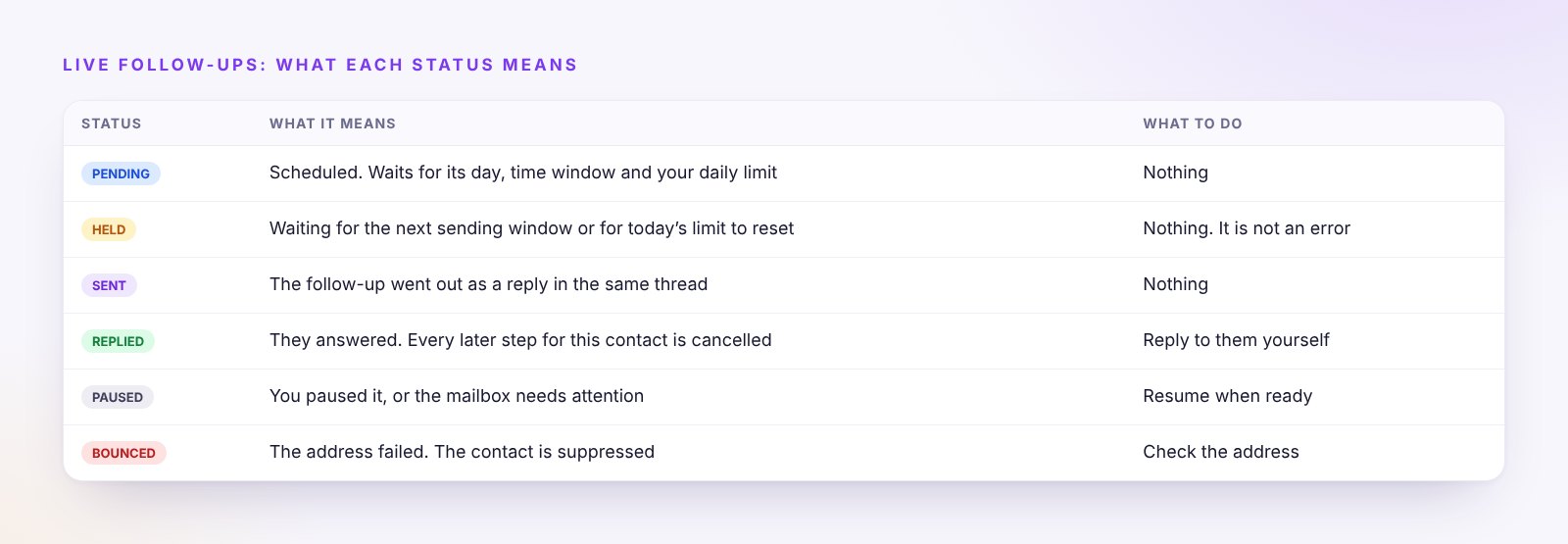
Live follow-ups shows every scheduled step. Before each follow-up is sent, Sequenzo checks the thread again for a reply. When the person answers, the status changes to Replied and every later step for that contact is cancelled. Out-of-office auto-replies are handled separately, so they don't stop the flow by mistake (how stop-on-reply works). Replies that need you, such as someone interested or asking a question, also create a task.
Step 7: Measure replies, not opens
Reports shows sends, replies, meetings booked and A/B results. Opens are shown too, but treat them as directional: privacy features in mail apps load images automatically. We explain why in opens lie, replies don't.
Writing your first three follow-ups
If you're starting from a blank flow, these three steps work for most situations. Keep each one to two to four sentences.
- Day 2: check it arrived and offer help. "Hi {{first_name|there}}, just making sure this came through OK. Happy to walk you through it if that's easier."
- Day 5: add something new or make the ask smaller. "One option that might help: [a smaller first step / a different date]. Would that work better?"
- Day 10: close the loop. "I'll assume the timing isn't right and close this on my side. If anything changes, just reply here."
Use the Reply coach on each step. It flags the things that most often stop people replying, such as no question at the end or a very long first line.
Example flows to start from
If you'd rather adapt something than start from a blank flow, these are simple starting points. Change the wording so it sounds like you.
| Situation | Steps | Delays |
|---|---|---|
| Quote or proposal | Did it arrive? / An option / A real deadline / Close the loop | 2, 4, 6 and 8 days apart |
| After a viewing | How does it sit? / Similar homes / Timing / Close | 1, 2, 4 and 7 days apart |
| After a test drive | Numbers / Hold the car / Timing / Close | 1, 2, 4 and 7 days apart |
| Meeting recap with no reply | Anything missed? / Smaller next step / Close | 3, 4 and 10 days apart |
| Documents you're waiting for | Reminder with the list / Easier option / Pause | 2, 3 and 4 days apart |
The solution pages have complete wording for each industry, for example real estate, car dealerships and mortgage brokers.
Setting it up for a team
On the Business plan, one person can build a flow and share it with the team. Each person connects their own mailbox, so follow-ups still come from whoever owns the conversation. A sensible order is: connect every mailbox, check authentication once for the shared domain, build two or three shared flows, then ask each person to send a test to themselves before using them with clients. If your team logs email in a CRM, add the CRM's BCC address once so every follow-up is recorded. See logging follow-up emails with a BCC address.
Send later, reminders and Inbox Pause
Not every email needs a flow. From the Gmail compose window you can also schedule an email for later (up to a year ahead), set a private reminder for 1, 3 or 7 days that closes itself if the person replies, or pause your inbox while you work. All three are on every plan. The extension guide shows where they are.
Common setup problems
- Test connection fails for Gmail. The app password is usually the cause: it must be created in the Google account that owns the mailbox, with 2-step verification turned on, and pasted without spaces.
- Microsoft 365 asks for admin approval. Your organisation restricts third-party apps. Ask IT to approve Sequenzo once; after that everyone can connect.
- Follow-ups are held. You've reached the daily limit you set. They go out the next day. Raise the limit gradually if your volume really is higher.
- A reply didn't stop the flow. Check the reply came to the connected mailbox and in the same thread. Replies from a different address are matched only when they reference the original email.
After the first week
Look at the flow's report after a week of real use. If nobody replies to a particular step, rewrite it or remove it. If most replies come after the first follow-up, consider shortening the gap before it. If people reply with the same question, answer it in the first email. Small changes each week usually do more than a perfect flow written on day one.
A checklist before you send to real contacts
- Mailbox connected and Test connection passes.
- SPF, DKIM and DMARC pass on your domain.
- Daily limit and warm-up set.
- Every step reads well for someone whose first name is missing.
- Sending window set to the recipients' working hours.
- You've sent a test to yourself and replied to it, and seen the flow stop.
Every new account gets 14 days of Pro free, with no card required, and there is a free plan after that. See pricing.
Frequently asked questions
Q01Can I set up automatic follow-ups in Gmail?
Yes. Gmail itself only offers reminders (nudges) and scheduled send. A follow-up tool such as Sequenzo sends the follow-up emails for you from your own Gmail address, in the same thread, and stops when the person replies.
Q02Does it work with Outlook and Microsoft 365?
Yes. Outlook and Microsoft 365 mailboxes connect by signing in (a company admin may need to approve the app once), and other providers connect with an app password over IMAP/SMTP.
Q03Will the follow-ups stop if someone replies?
Yes. Sequenzo checks the thread for a reply before every follow-up, and a reply cancels all remaining steps for that contact. Out-of-office auto-replies are handled separately.
Q04How many follow-ups should my first flow have?
Three or four is a good start. The built-in proven flow uses four steps spaced 2, 3, 4 and 7 days apart, which you can edit.