On this page 13 sections
Most follow-up tools ask you to leave your inbox, upload a list and build a campaign. That's the wrong shape for the emails most salespeople, agents and dealers actually send: one email to one person, written by you, that needs a follow-up if they go quiet. The Sequenzo browser extension puts the follow-up in the compose window, where you already are.
Where it works
The extension runs in Chrome and other Chromium browsers (Edge, Brave, Arc and Opera). It works in Gmail, and in the web versions of Outlook and several other providers, including Zoho, iCloud, Fastmail and others. Firefox isn't supported yet. You can install it from the Chrome Web Store.
The compose bar
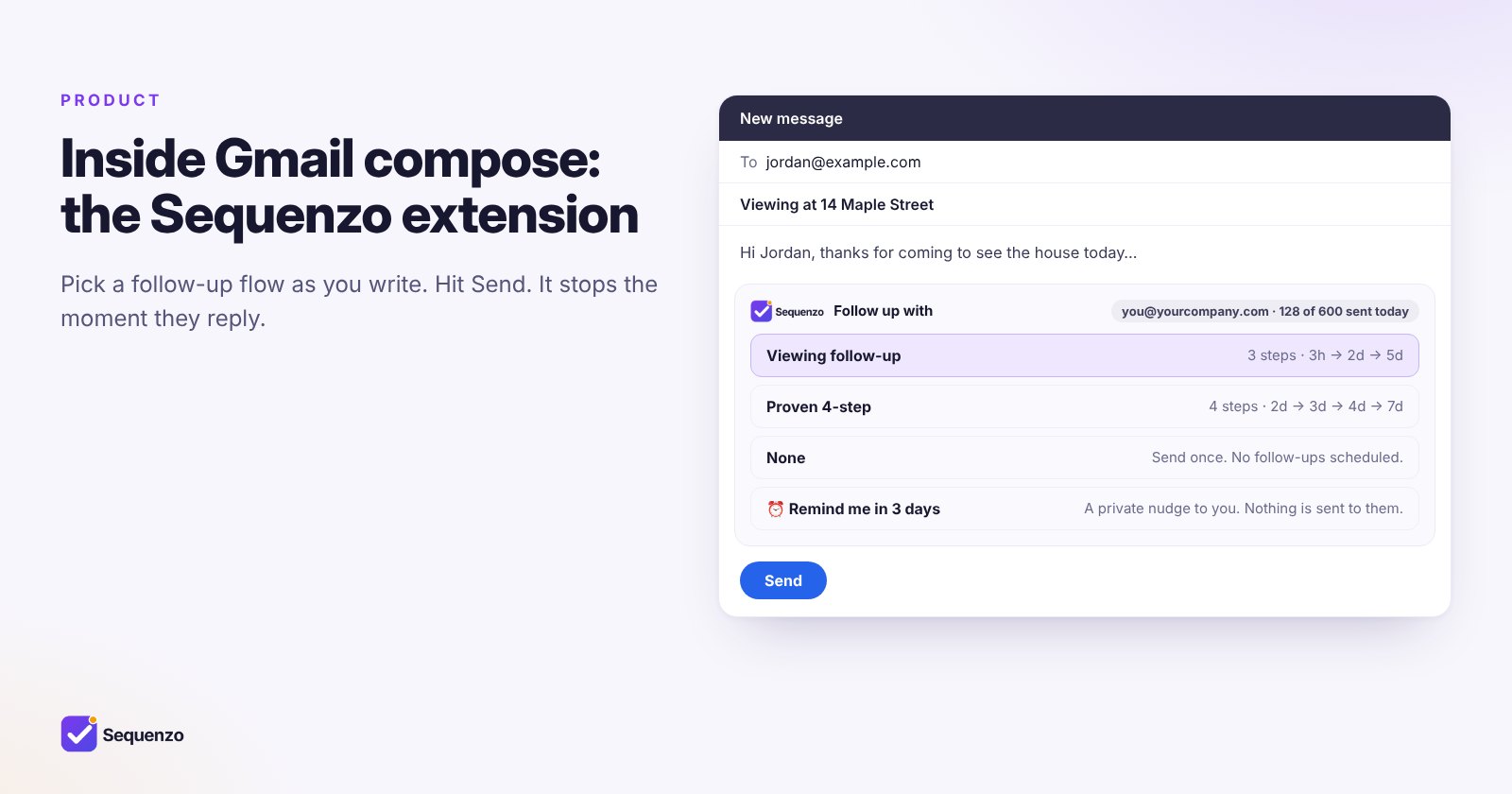
When you open a new message, two Sequenzo controls appear next to the Send button: the follow-up picker (the Sequenzo icon with a small arrow) and a Later button for send later.
The follow-up picker
The picker opens a short list headed "Follow-up sequence". At the top are the simple options:
- None. Send once, with no follow-ups scheduled.
- Remind me in 1 day, 3 days or 7 days. A private reminder goes on your Tasks list. It closes itself if the person replies, and nothing is sent to them.
Below those are your follow-up flows, each with its cadence so you can see what you're choosing, for example 3 steps · 3h → 2d → 5d. The mailbox selector shows which of your connected mailboxes will send the follow-ups and how much of today's limit is used, such as "128 of 600 sent today".
Send later
The Later button schedules the email itself. The quick choices are in 1 hour, tomorrow morning, tomorrow afternoon and Monday morning, and "Pick a date and time" lets you schedule up to a year ahead. The email is sent from your own mailbox by Sequenzo at that time, with whatever follow-up you picked, so the follow-up timing starts from when the email actually goes out.
Send later, reminders and Inbox Pause are included on every plan, including Free.
What happens when you press Send
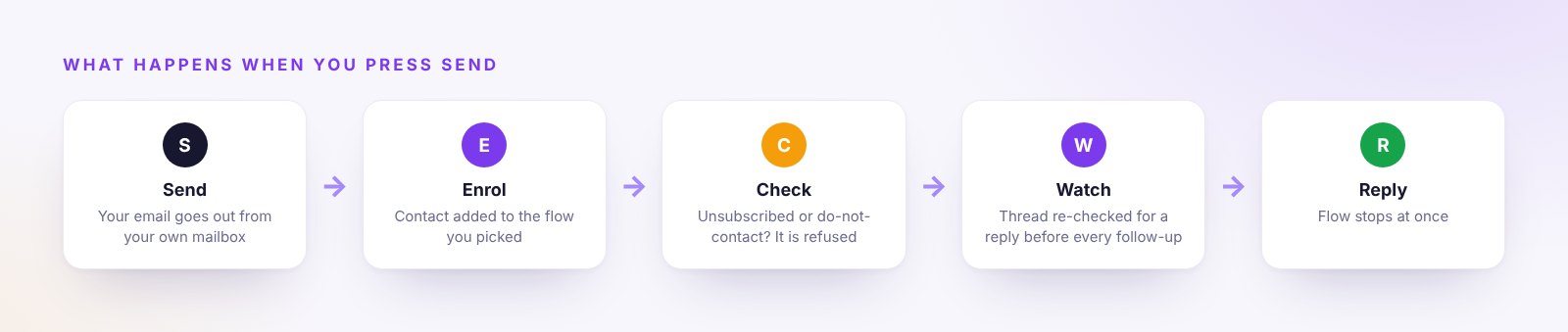
- Your email goes out from your own mailbox as you wrote it. The compose window closes straight away with a "Sending…" notice.
- The recipient is added to the flow you picked, and becomes a contact in Sequenzo.
- Anyone who has unsubscribed or is on your do-not-contact list is refused, so you can't follow up with someone who asked you not to.
- Each follow-up is scheduled as a reply in the same thread, inside your sending days and hours.
- Before every follow-up, the thread is checked again for a reply. If there is one, the flow stops.
Replies and today's follow-ups, inside Gmail
In Gmail, the extension adds a button in the top bar that shows new replies, and a side tab listing the follow-ups due today. The side panel gives you sending health, reply cards and today's counts without opening the Sequenzo dashboard. When someone replies, you see it straight away and can answer in the same thread.
Privacy and permissions
The extension works with the emails you send through it and the threads it needs to watch for replies. It doesn't read the rest of your mailbox. Mailbox access itself is set up in the Sequenzo web app: Outlook and Microsoft 365 use Microsoft's own sign-in, and Gmail and other mailboxes use an app password you can revoke at any time. Credentials are encrypted at rest.
A note on open tracking
If open tracking is on for a flow, the extension adds a small tracking image to the email. Sequenzo labels opens as Recipient or You opened it, so your own views of the sent message don't count as the other person reading it, and it filters out opens caused by security scanners. Even so, treat opens as directional, because some mail apps load images automatically. See why opens lie and replies don't. You can turn tracking off per flow.
What it doesn't do
- It doesn't read your whole mailbox. It works with the messages you send through it and the threads it needs to watch for replies.
- It doesn't send anything on its own. Every flow starts from an email you wrote and sent.
- It isn't for bulk or cold email. It's built for following up on conversations you started.
- You create and edit flows in the Sequenzo web app, not in the extension.
None, a reminder or a flow?
It helps to decide quickly which option an email needs, because most emails need none of them.
- Choose None for emails that don't need an answer, such as a thank-you, a confirmation or an internal note.
- Choose a reminder when the next step depends on something you'll need to judge yourself, for example a delicate negotiation or a message to someone senior. You'll get a task, and you write the follow-up when you're ready.
- Choose a flow when the follow-ups are predictable and you'd send roughly the same thing every time: quotes, viewings, test drives, documents you're waiting for, proposals.
If you're unsure, pick a reminder. You can always start a flow from the Sequenzo dashboard later if the thread goes quiet.
Using it in Outlook on the web
The extension also works in the web versions of Outlook and several other providers. The idea is the same: write the email, pick what should happen after it, and send. Follow-ups go out from the mailbox you connected to Sequenzo, so make sure the address you're writing from is one of your connected mailboxes. If you use the Outlook desktop app rather than the browser, you can still enrol contacts in a flow from the Sequenzo dashboard.
Using it in a team
On the Business plan, shared flows appear in everyone's picker, so a new salesperson or agent sees the same follow-ups as everyone else from their first day. Each person still sends from their own mailbox and signature. Managers edit a shared flow once in the web app, and the change applies to new conversations from then on.
Three ways people use it
An agent after a viewing
Write the email with the floor plan attached, pick the "after a viewing" flow, and press Send at 6pm. The first follow-up goes out two days later in the same thread. If the buyer replies on day one, nothing else is sent and the reply shows up in the extension's reply list.
A consultant sending a proposal late at night
Write the proposal email at 11pm, choose Later, then "Tomorrow morning", and pick the proposal flow. The client receives it at 8am, and the follow-ups are timed from then rather than from 11pm.
A quick question that only needs a nudge
For an email where you'd rather write the follow-up yourself, choose "Remind me in 3 days". If there's no reply by then, a task appears on your list. If they answer first, the reminder closes itself.
Troubleshooting
- The Sequenzo controls don't appear. Check the extension is turned on in your browser's extension settings, then reload Gmail. Signing in to the extension once is required.
- The flow you want isn't in the list. Flows are created and edited in the Sequenzo web app; a new flow appears in the picker after you reload the compose window.
- The wrong mailbox is selected. Use the mailbox selector in the picker. Follow-ups always go out from the mailbox shown there.
- A follow-up went out after someone replied. That shouldn't happen, because the thread is checked again a few seconds before every send. If it does, it is usually because the reply came from a different address or started a new thread. Tell us and we'll look at it.
Getting started
- Create an account (14 days of Pro free, no card).
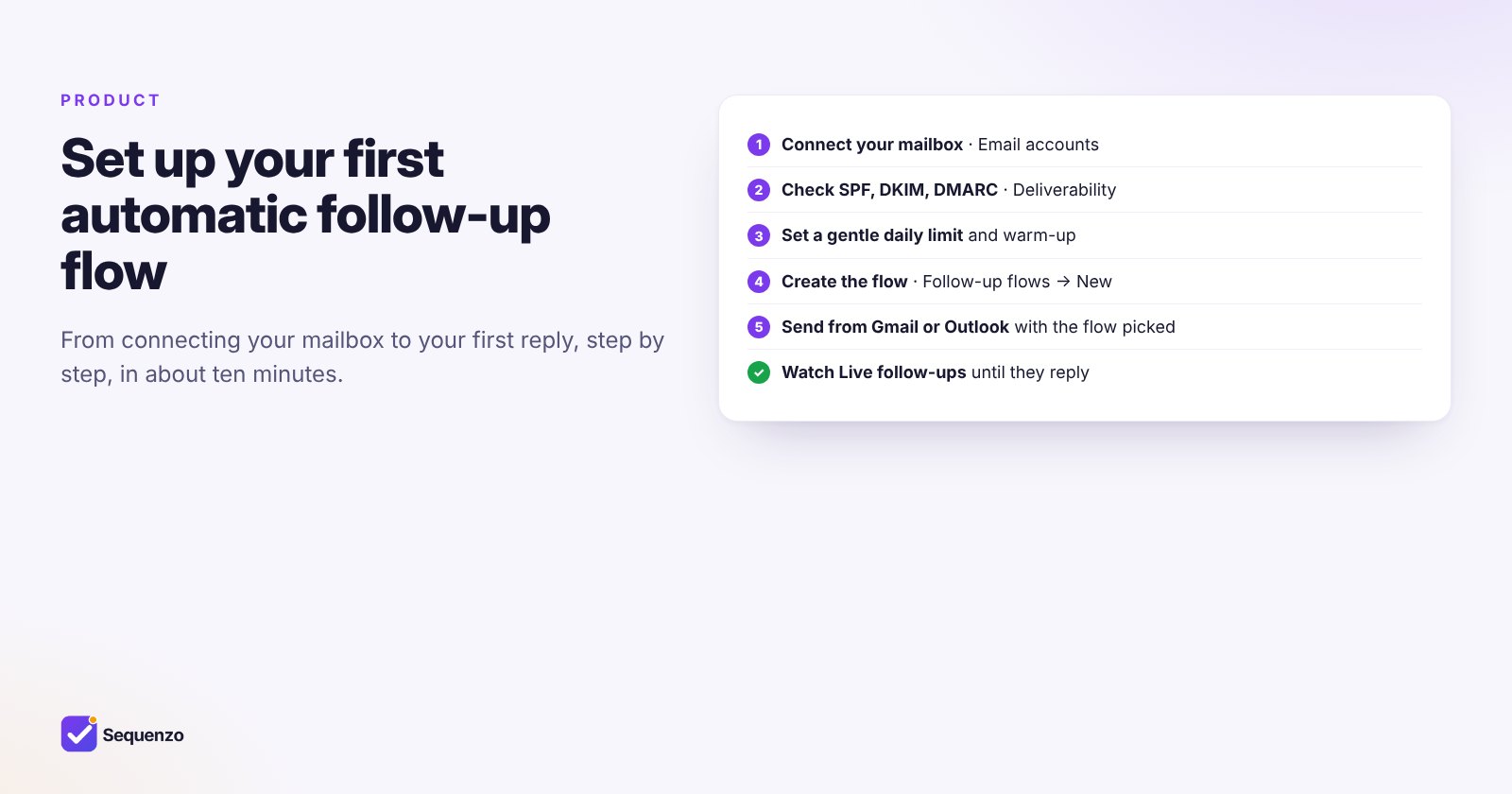
- Connect your mailbox and build your first flow. See how to set up your first follow-up flow.
- Install the extension, open Gmail or Outlook, and send your first email with a flow picked.
Working in a team? Flows and templates can be shared, so everyone follows up the same way from their own mailbox. See Sequenzo for teams.
Frequently asked questions
Q01Which browsers does the Sequenzo extension support?
Chrome and other Chromium-based browsers, including Edge, Brave, Arc and Opera. Firefox is not supported yet.
Q02Does the extension work with Outlook?
Yes. It works in Gmail and in the web versions of Outlook and several other email providers.
Q03Does the extension read all my emails?
No. It works with the emails you send through it and watches those threads for replies so it can stop the follow-ups.
Q04Can I send an email without follow-ups?
Yes. Choose None in the picker to send once, or choose a reminder in 1, 3 or 7 days to get a private task without sending anything else to the recipient. You can also schedule the email with Later.