On this page 9 sections
- The short version
- SPF: who is allowed to send as you
- The SPF rules that catch people out
- DKIM: a signature on every message
- DMARC: the policy that ties it together
- What Gmail and Outlook now require
- Mistakes that still send authenticated mail to spam
- How to check your setup in five minutes
- Where Sequenzo fits
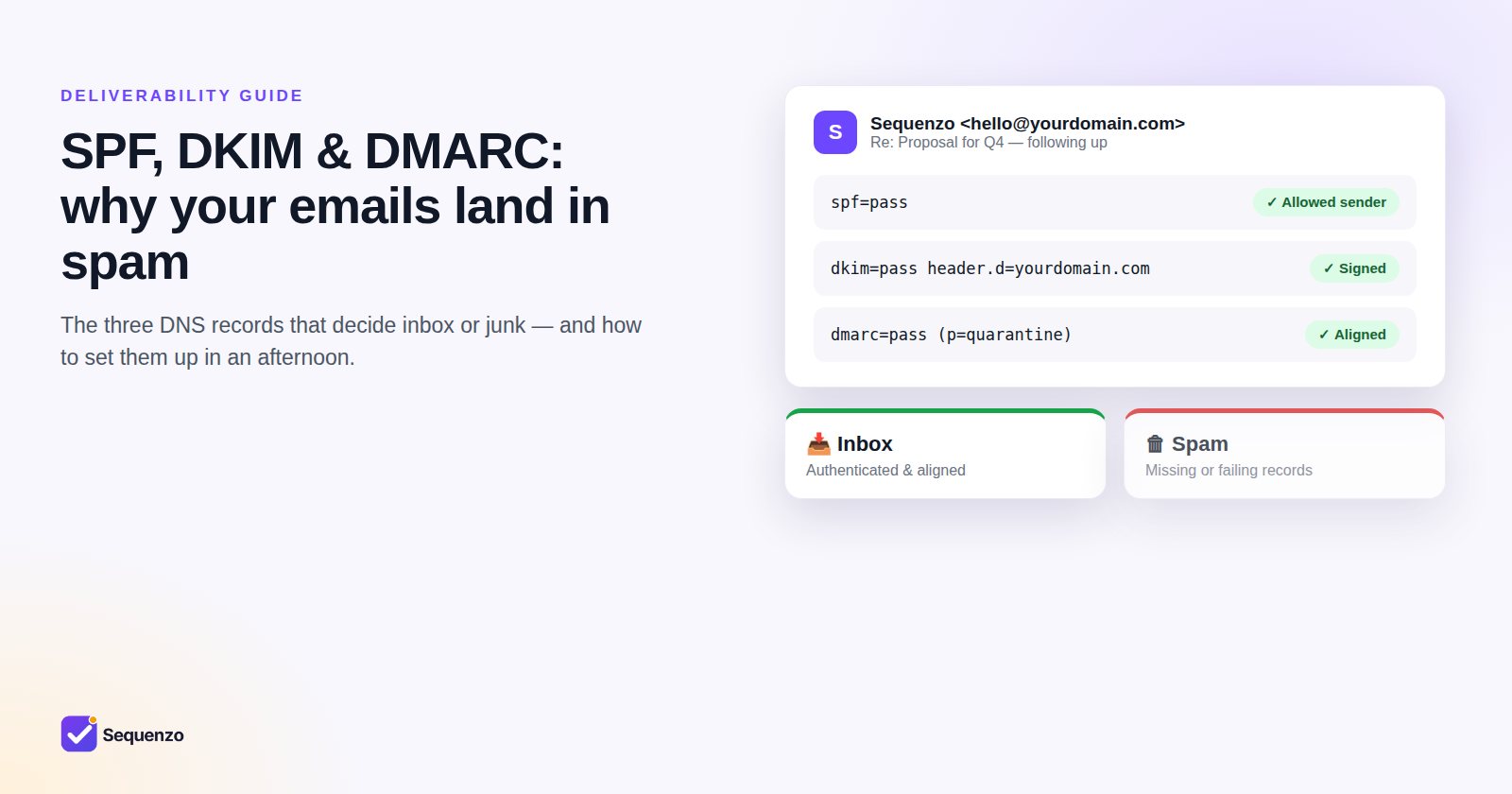
You wrote a good email to someone who is expecting it, and it still landed in their spam folder. Most of the time the reason isn't what you wrote. The receiving server couldn't prove the email really came from you.
That proof comes from three DNS records: SPF, DKIM and DMARC. They take an afternoon to set up, and they matter more every year. Gmail has required them from anyone sending in volume since February 2024. Outlook.com, Hotmail and Live.com followed in May 2025, and now reject high-volume mail that doesn't comply.
This guide explains what each record does, shows the exact records to publish, and lists the mistakes that quietly undo all of it.
The short version
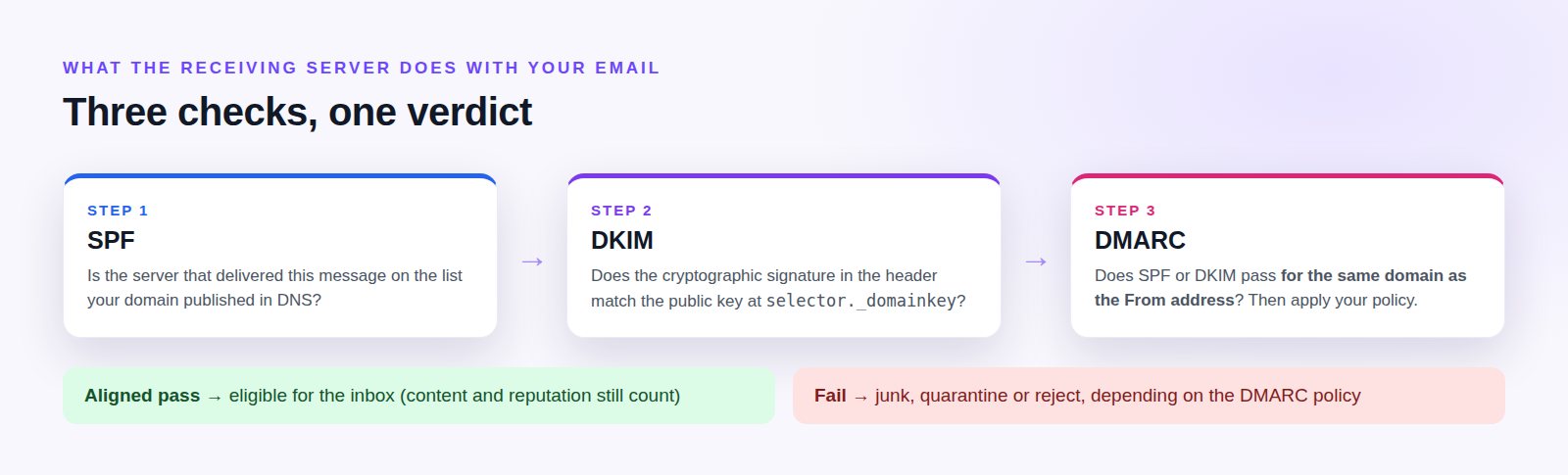
- SPF lists the servers that are allowed to send email for your domain.
- DKIM adds a digital signature to every message, proving it came from your domain and wasn't changed on the way.
- DMARC tells receivers what to do when a message fails those checks, and sends you reports about who is sending as you.
A message passes DMARC when SPF or DKIM passes for the same domain as the From address. That last part is called alignment, and it's where most setups go wrong.
SPF: who is allowed to send as you
SPF (Sender Policy Framework) is a TXT record on your domain listing every service that sends email as you: your mailbox provider, your transactional email service, your help desk, your invoicing tool.
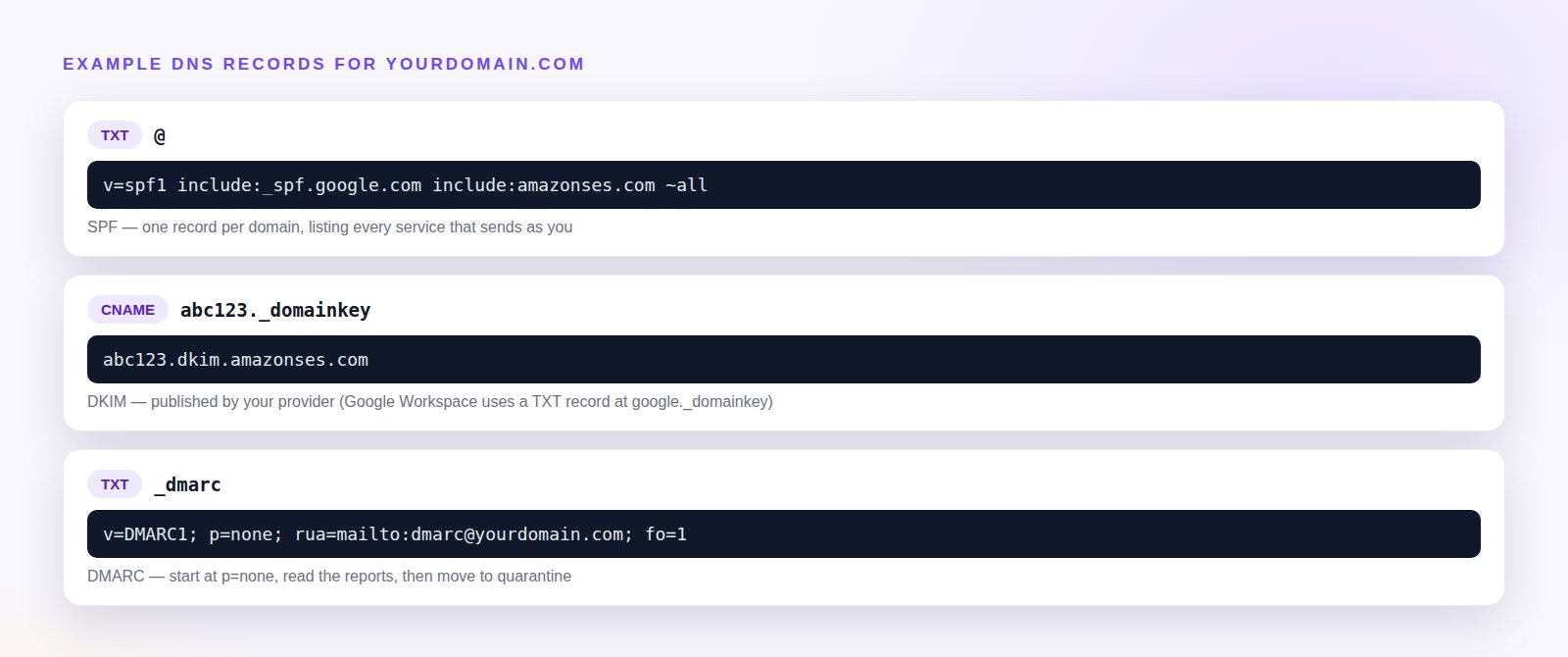
A typical record for a company on Google Workspace that also sends through Amazon SES looks like this:
Type: TXT   Host: @
v=spf1 include:_spf.google.com include:amazonses.com ~all
The SPF rules that catch people out
- One SPF record per domain. Two separate
v=spf1records is a permanent error, and receivers treat it as having no SPF at all. Addinclude:terms to the one record you have. - Ten DNS lookups, maximum. Every
include:,aandmxcosts at least one lookup. Past ten, SPF fails for everyone. - End with
~allor-all.+allmeans "anyone may send as us", which is worse than no record. - SPF checks the envelope sender, not the From line. If your provider bounces mail through its own domain (Amazon SES does by default), SPF passes for their domain, not yours. It won't align for DMARC unless you set up a custom MAIL FROM domain.
DKIM: a signature on every message
DKIM (DomainKeys Identified Mail) signs each outgoing message with a private key held by your email provider. The matching public key is published in your DNS under a selector, so receivers can check that the message really came from your domain and wasn't altered.
You don't generate DKIM keys yourself. Your provider does, and gives you the record to publish:
- Google Workspace: Admin console → Apps → Google Workspace → Gmail → Authenticate email. Generate a 2048-bit key, publish the TXT record at
google._domainkey, then come back and click Start authentication. People often skip that last click, and the key then does nothing. - Microsoft 365: Defender portal → Email & collaboration → Policies → Email authentication → DKIM. Publish the two CNAME records it shows, then enable signing.
- Amazon SES: Identities → your domain → Easy DKIM. Publish the three CNAME records. SES signs every message once the identity shows as verified.
- Zoho, SendGrid, Mailgun, Postmark, Brevo, Resend: each has a "domain authentication" screen that lists the records to publish.
DKIM is the most important of the three for alignment. It survives forwarding and doesn't depend on which server delivered the message, so a passing, aligned DKIM signature is usually what gets you through DMARC.
DMARC: the policy that ties it together
DMARC (Domain-based Message Authentication, Reporting and Conformance) is a TXT record at _dmarc.yourdomain.com. It does two jobs:
- It tells receivers what to do with mail that fails: nothing (
p=none), send it to spam (p=quarantine), or refuse it (p=reject). - It asks them to send you daily reports (
rua=), so you can see every service sending as your domain, including ones you forgot about.
Start in monitoring mode:
Type: TXT   Host: _dmarc
v=DMARC1; p=none; rua=mailto:[email protected]; fo=1
Read the reports for two to four weeks. Once every legitimate sender passes, move to p=quarantine, and later p=reject. That stops anyone else sending email that pretends to be you.
What Gmail and Outlook now require
Since February 2024, Gmail asks everyone sending to Gmail addresses to authenticate with SPF or DKIM, use TLS, have valid forward and reverse DNS, and keep the spam rate reported in Postmaster Tools below 0.3%. Senders of more than 5,000 messages a day must also:
- publish SPF and DKIM, plus a DMARC record (
p=noneis enough); - align the From domain with the SPF or DKIM domain;
- offer one-click unsubscribe on marketing email.
Since 5 May 2025, Outlook.com, Hotmail.com and Live.com apply the same idea to senders of more than 5,000 messages a day: SPF, DKIM and an aligned DMARC record. Mail that doesn't comply is rejected outright rather than sent to junk.
Even if you send far less than that, meet the same bar. Receivers trust authenticated, aligned mail more at every volume.
Mistakes that still send authenticated mail to spam
- Sending from a free address.
[email protected]can never be authenticated for your brand. Receivers see a company name in the From line and a personal consumer address behind it. Use an address on your own domain. - Links to a different domain. If you send from
[email protected]but every link points tobrand.com, filters notice the mismatch. Send from the domain your links use, or a subdomain of it. - A brand-new domain or mailbox sending a lot on day one. Reputation is earned. Start with the conversations you already have, and let volume grow naturally.
- URL shorteners and link text that shows a different address from the link. Both are classic phishing patterns.
- HTML-only email. Always include a plain-text version. Every serious email service does this for you.
How to check your setup in five minutes
- Send an email from your domain to a Gmail address you own.
- Open it, click the three-dot menu → Show original.
- Look for
SPF: PASS,DKIM: PASSandDMARC: PASSat the top. If DKIM passes but shows a different domain from your From address, you have an alignment problem. - Register your domain in Google Postmaster Tools to see your spam rate and domain reputation over time.
Where Sequenzo fits
Sequenzo sends your follow-ups from your own mailbox, inside the original thread. They carry your domain's SPF, DKIM and DMARC exactly as if you had typed them yourself, and there's no shared sending server whose reputation you inherit. Getting these three records right is the single best thing you can do for every email you send, with or without Sequenzo.
Frequently asked questions
Q01Do I need all three - SPF, DKIM and DMARC?
Yes. SPF and DKIM prove the message is really from you. DMARC checks that at least one of them matches your From domain, tells receivers what to do when it doesn't, and sends you reports. Gmail and Outlook require all three from anyone sending more than 5,000 emails a day, and receivers trust authenticated mail more at every volume.
Q02Will setting up DMARC stop my email being delivered?
Not if you start with p=none. That policy changes nothing about delivery. It only turns on the reports. Move to p=quarantine or p=reject once the reports show every legitimate service passing.
Q03I added SPF and DKIM but my emails still go to spam. Why?
Authentication makes you eligible for the inbox, but it doesn't guarantee it. Check alignment first (DKIM must be signed for your From domain, not your provider's). Then check the basics: a free-mail From address, links to a different domain, a new domain sending a lot at once, link shorteners, or content that reads like a mass mailing.
Q04Can I have more than one SPF record?
No. Two SPF records on the same domain is a permanent error, and receivers treat the domain as having no SPF at all. Put every sending service into one record with several include: terms, and stay under the limit of ten DNS lookups.
Q05How do I check whether my emails pass SPF, DKIM and DMARC?
Send yourself an email to a Gmail address, open it, and choose Show original from the three-dot menu. Gmail shows PASS or FAIL for each of the three at the top of the page. Google Postmaster Tools adds your spam rate and domain reputation over time.